Boost Sales with DejavooExtra Loyalty Program!
The Dejavoo POS Terminal simplifies every step of your sales process. Whether you're identifying and rewarding loyal customers or managing transactions with various payment options, this system provides you everything you need to fully leverage your loyalty program.
For loyalty members who plan to shop with you, it's crucial to recognize them on your Dejavoo Terminal before initiating the sale process. Please follow the following steps:
Note!
To make every payment a rewarding experience for your customers, make sure to switch to DejavooExtra on your Dejavoo POS terminal by launching the Dvpaylite application. To learn how to access to DejavooExtra, click here.
1. Identify your Loyalty Members
Start with identifying your loyalty members via their registered credit/debit cards or registered phone numbers provided by them during onboarding.
Click the “Loyalty Member” icon, view the Loyalty identifier options as “Use Card” or “Use Phone Number”.
Your loyalty member is prompted to choose one of these options. Select the option as per your member’s preference.
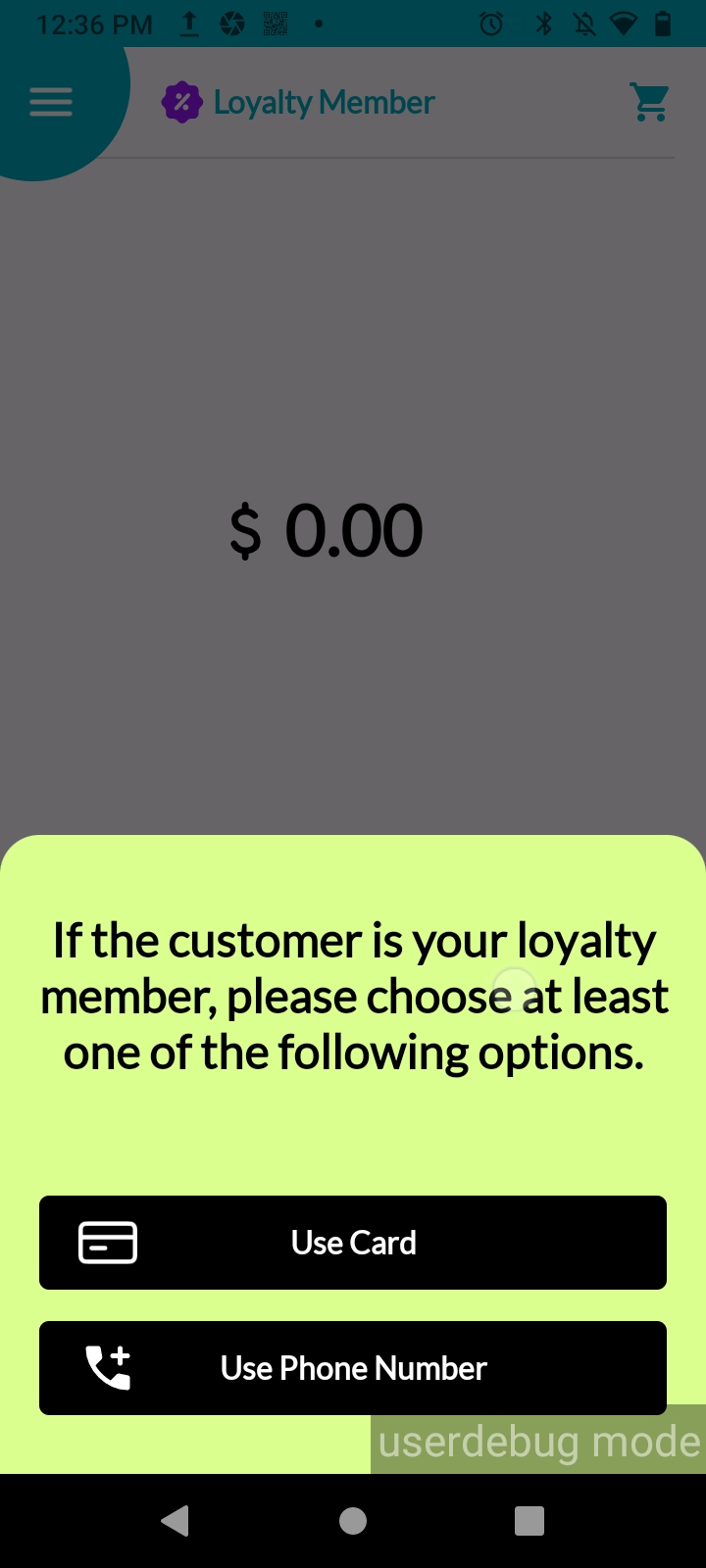
Identifying Loyalty Member with the Registered Bank Card
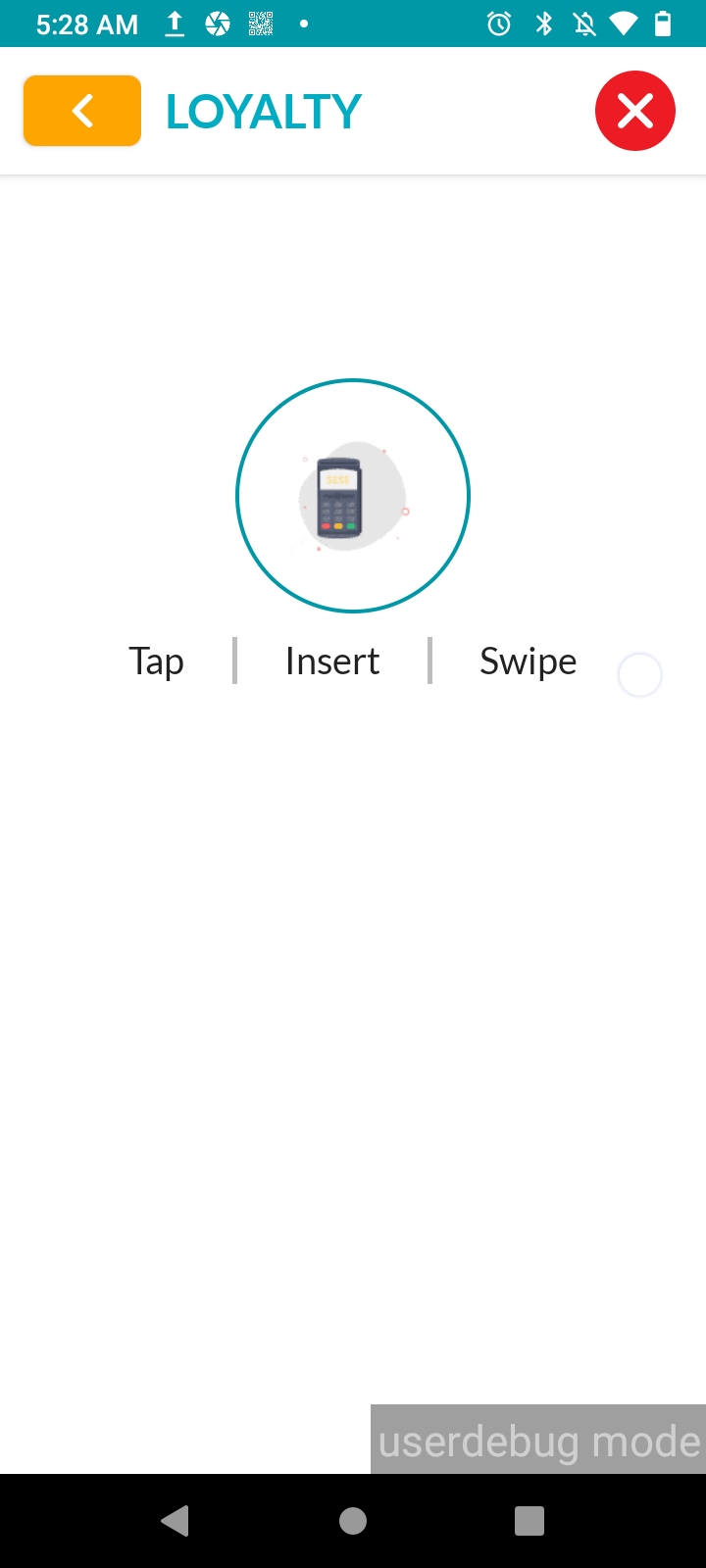
If your member prefers to identify themselves with the registered card option, click the “Use Card” button to proceed with the card recognition. Tap, insert or swipe the registered credit/debit card to recognize the loyalty member.
Identifying Loyalty Member with the Registered Phone Number
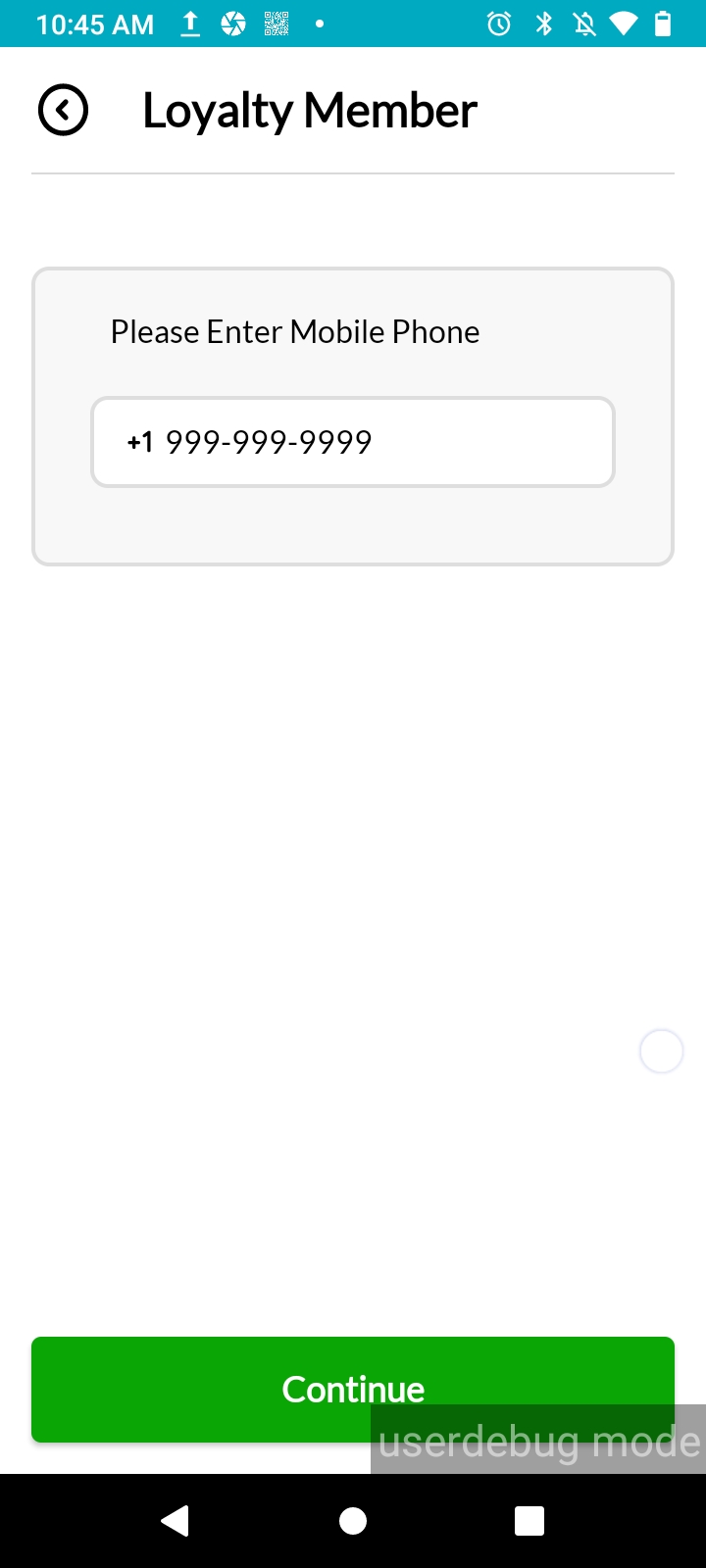
If your member prefers to identify themselves with the registered phone option, click the “Use Phone Number” button. Enter the registered mobile phone number and click “Continue”.
Once the system identifies your member, you can proceed to “Sale”. Please follow the steps provided in the “Initiate the Sale” section below.
Note!
If your customer’s card or phone number is not recognized by the system, it indicates that your customer is not yet a member of the DejavooExtra Loyalty Program. To onboard the customer in the loyalty program during the sale process, follow the instructions on your screen.
If an unregistered phone was entered for the recognition, tap, insert or swipe the credit/debit card on the Tap | Insert | Swipe” screen and fill out the Fast Enrollment Form.
If an unregistered card was tapped, inserted or swiped for the recognition, fill out the Fast Enrollment Form and follow the steps by clicking here.
Add New Card
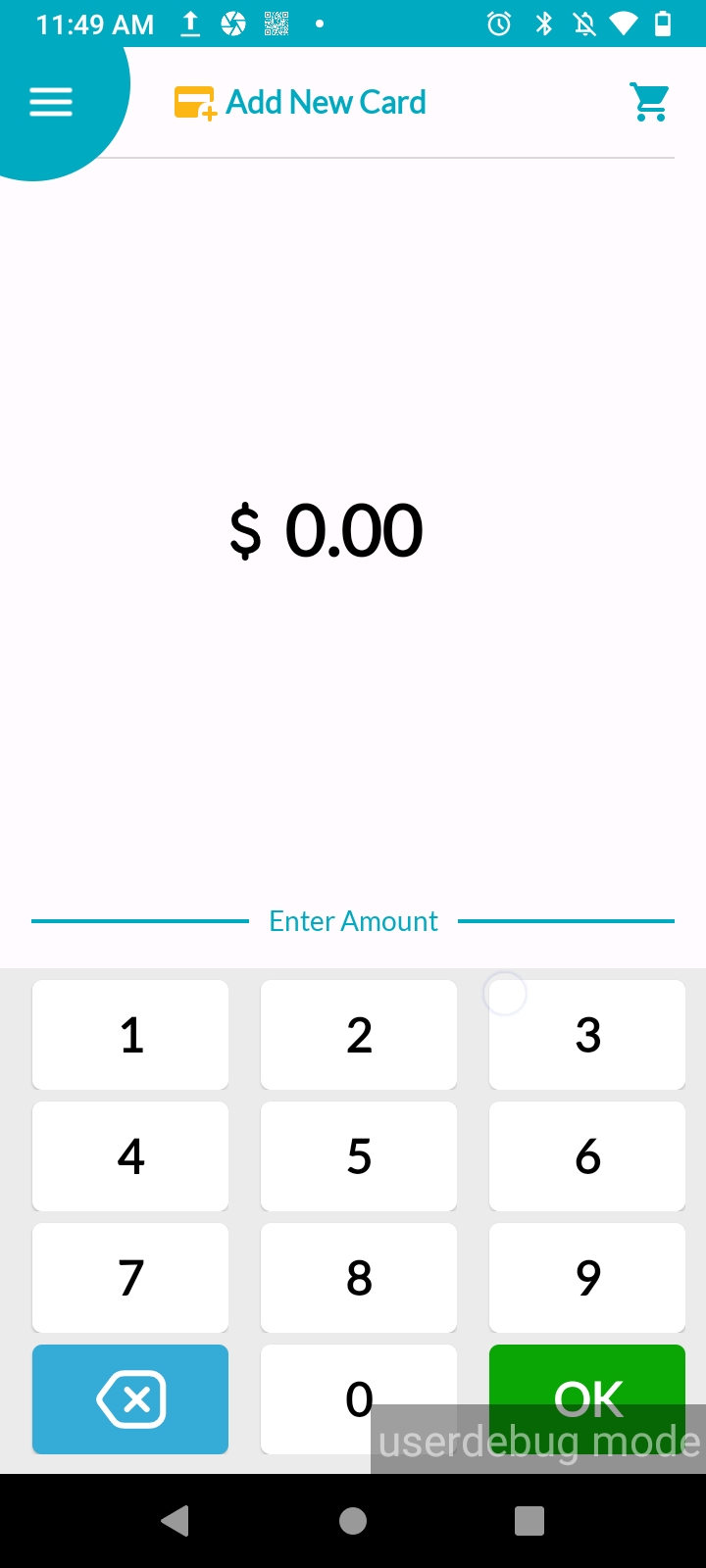
Once the Loyalty Member is identified by the system either by the registered bank card or the phone number, "Add New Card" icon will appear at the top of the screen. At this point, if your loyalty member has a second card that they want to add to their loyalty membership, another credit/debit card can be registered. Click the “Add New Card” icon and tap, insert or swipe the new credit/debit card on the opening Tap| Insert | Swipe screen.
Note!
You can add up to four new cards under the same loyalty membership!
2. Initiate the Sale
Initiate the rewarding sales process once your member is successfully identified by your loyalty program.
There are two options for initiating rewarding sales": “Cart” and “Amount Entry”.
In case, you wish to reward your customers according to the items they purchased, then continue by clicking the ‘Cart' icon on your screen.
If you wish to reward only the total basket amount, continue with entering the purchase amount.
Sales by rewarding the ‘Cart’ based items
The “Cart” feature offers several advantages, including the ability to implement item-based campaigns, track campaign performance on item-basis, and analyze member behaviors by the items members purchased.
Note!
To use the “Cart” feature, ensure that your products (items) are defined in your loyalty system with correct product name, product code and/or barcode. To define/add/edit your products, go to the DejavooExtra Merchant Portal and navigate to the “Products” section.
Once your products are defined in DejavooExtra Merchant Portal, you will be able to see your product list once you click “Cart” icon by searching for the item names or codes, or by scanning barcodes.
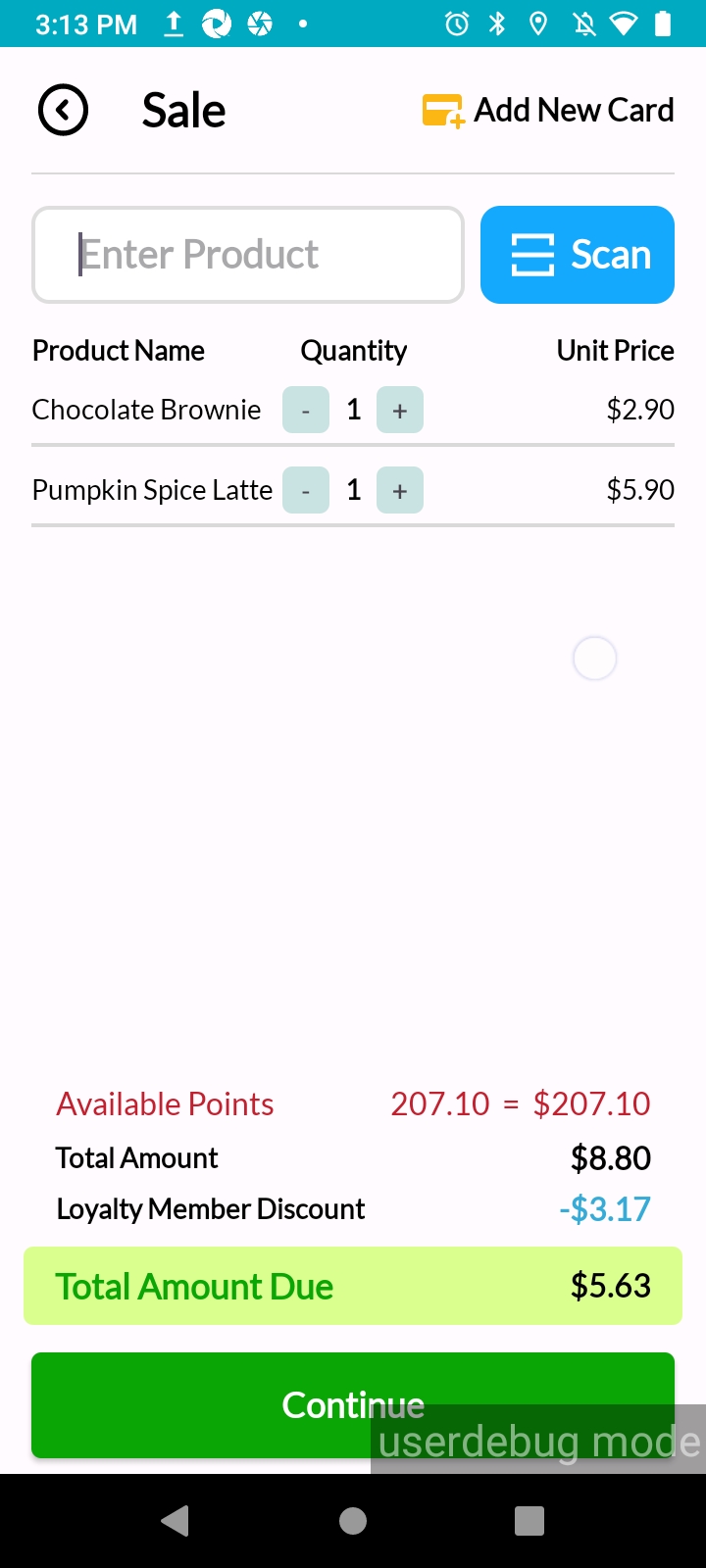
Clicking the “Cart” icon, displays the screen with “Enter Product” field and “Scan” button, as well as the Member’s Available Point Balance and campaign discount (if available)
Start adding the purchased products by searching for the product names or codes, or by scanning the product barcode.
Select the product, enter quantity and press “Add” for each product.
Click the “Continue” button.
See the “Total Amount” and the “Total Amount Due” at the bottom of the screen.
Click the “Continue” button to proceed to the payment.
Sales by rewarding the total purchase amount
You can also enter the total sale amount directly into the designated amount entry field and click the “OK” button to proceed to the payment. In this case the total amount will be rewarded depending on the Campaigns defined via your DejavooExtra Merchant Portal.
3. Complete the payment by using multiple payment methods
Your DejavooPOS offers four different payment methods which you can use only one of them to pay the full amount or as a combination of the four as partial payments in a single transaction:
Gift Coupon
Redeem Points
Cash
Debit/Credit Card
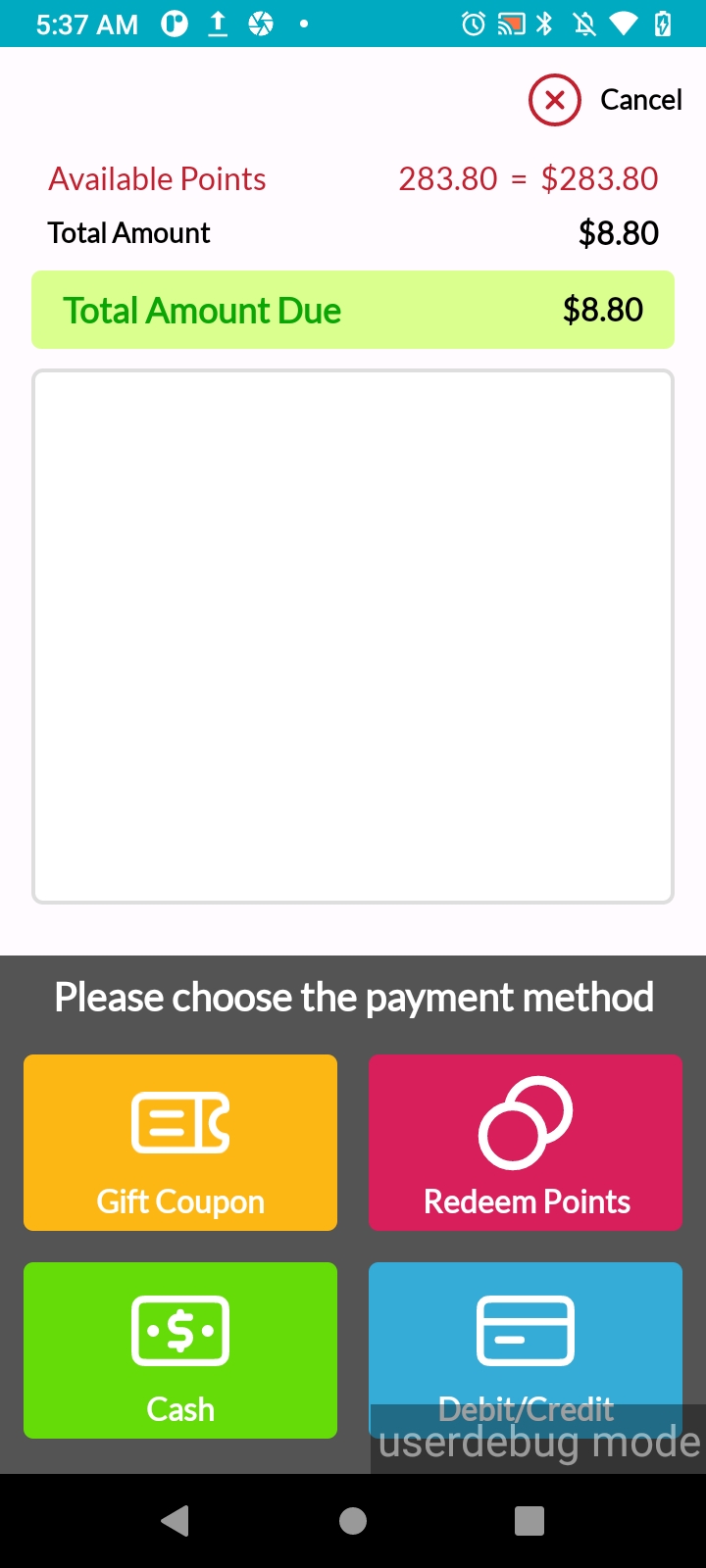
Payment Screen displays:
On the top section, the member’s available points, and the total amount due after any personalized discount applied.
On the bottom section, the payment methods.
Note!
When your loyalty member is eligible for any of your active Discount Campaigns, the loyal member Discount Amount will be displayed on the payment screen. Creating campaigns and offering points and discounts to your Loyal Members, help to increase loyalty and profitable sales. To create a campaign, navigate to the “Campaigns” section in the DejavooExtra Merchant Portal.
Payment with Gift Coupon
Gift Coupons encourage members to shop more with you. To learn more about how to create Coupon Campaigns please click here.
In this example, let’s accept the '“total amount due” payment with the Member’s Coupon.
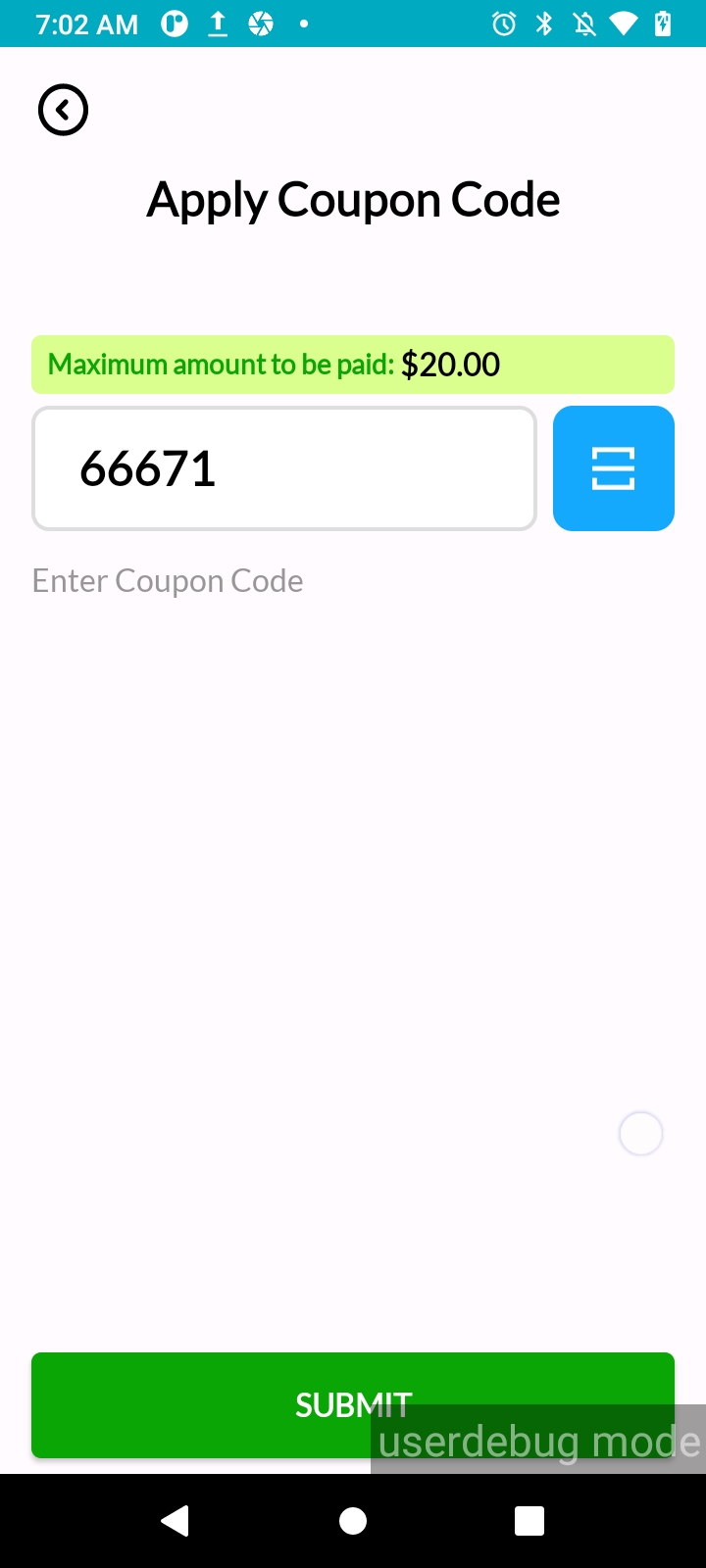
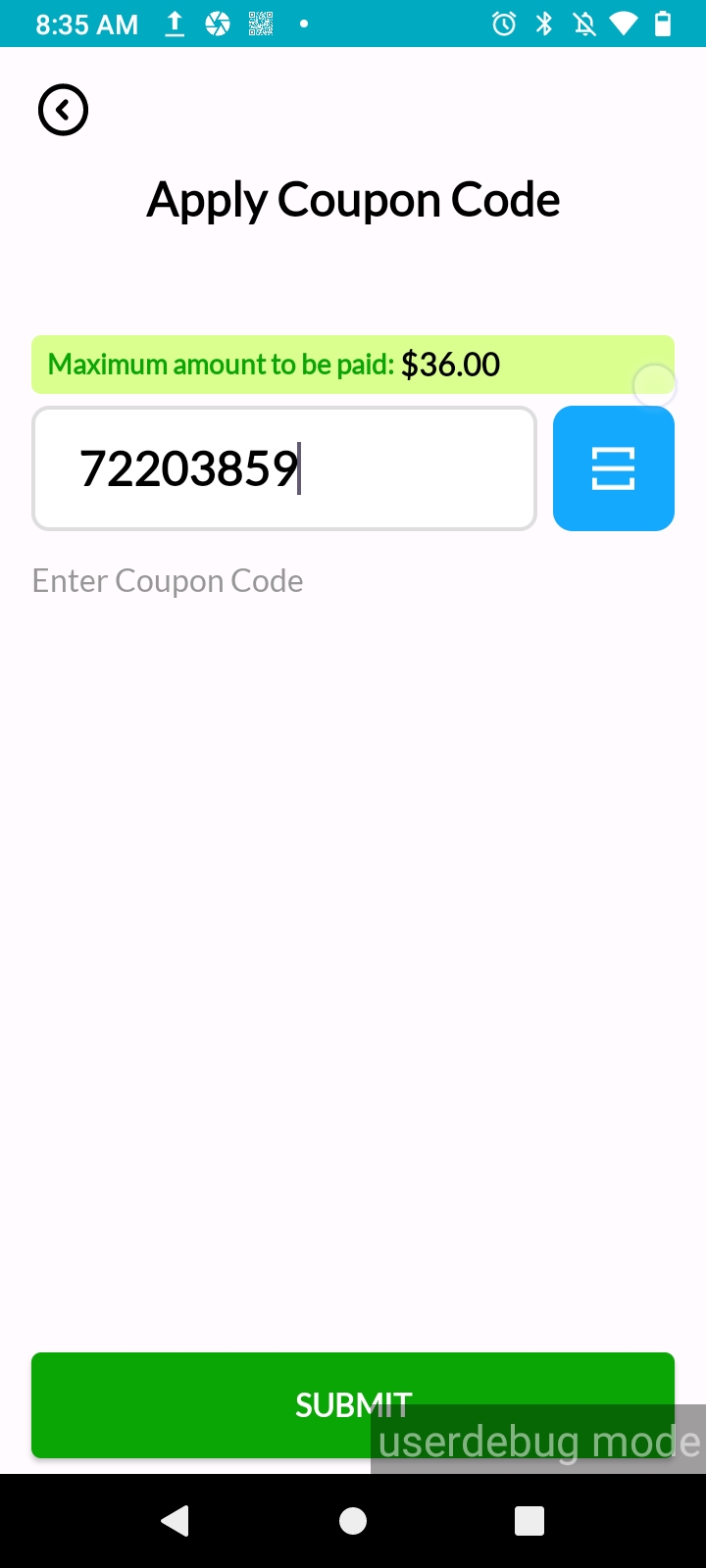
For the $20 purchase, select the “Gift Coupon” option from the payment methods. Enter the coupon code into the code entry field and click the “Submit” button.
Note!
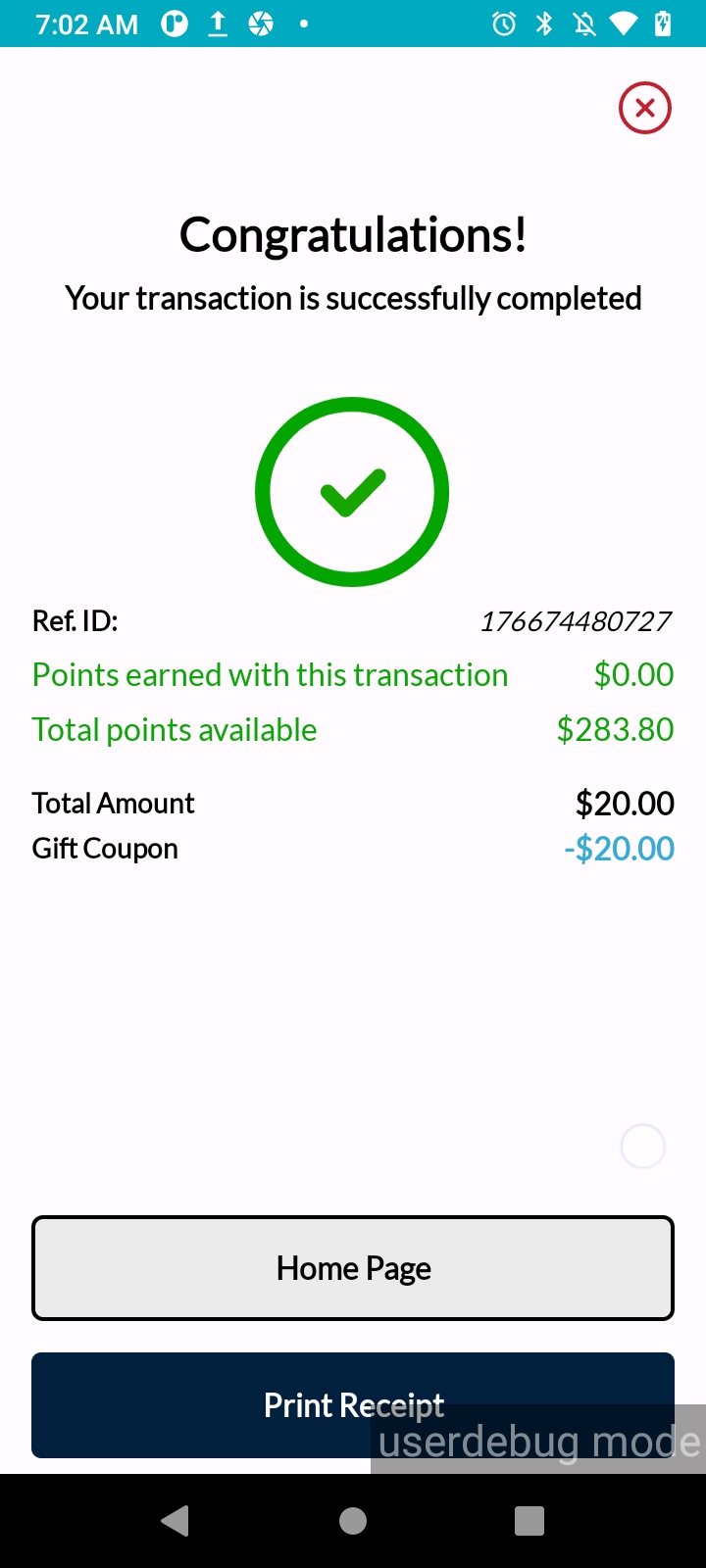
If the gift coupon value that the member wants to redeem, is equal to or bigger than the total amount due, the payment will be successfully complete.
If the gift coupon amount is less than the total amount due, then the coupon amount will be redeemed, and remaining amount should be paid with the other methods.
If the gift coupon value is bigger than the total amount, the payment will be successfully completed, yet the excess coupon value will not be returned to the member.
Payment with Point Redemption
Points are a great way of retaining and growing your loyal member base. To learn more about how to create Point Campaigns please click here.
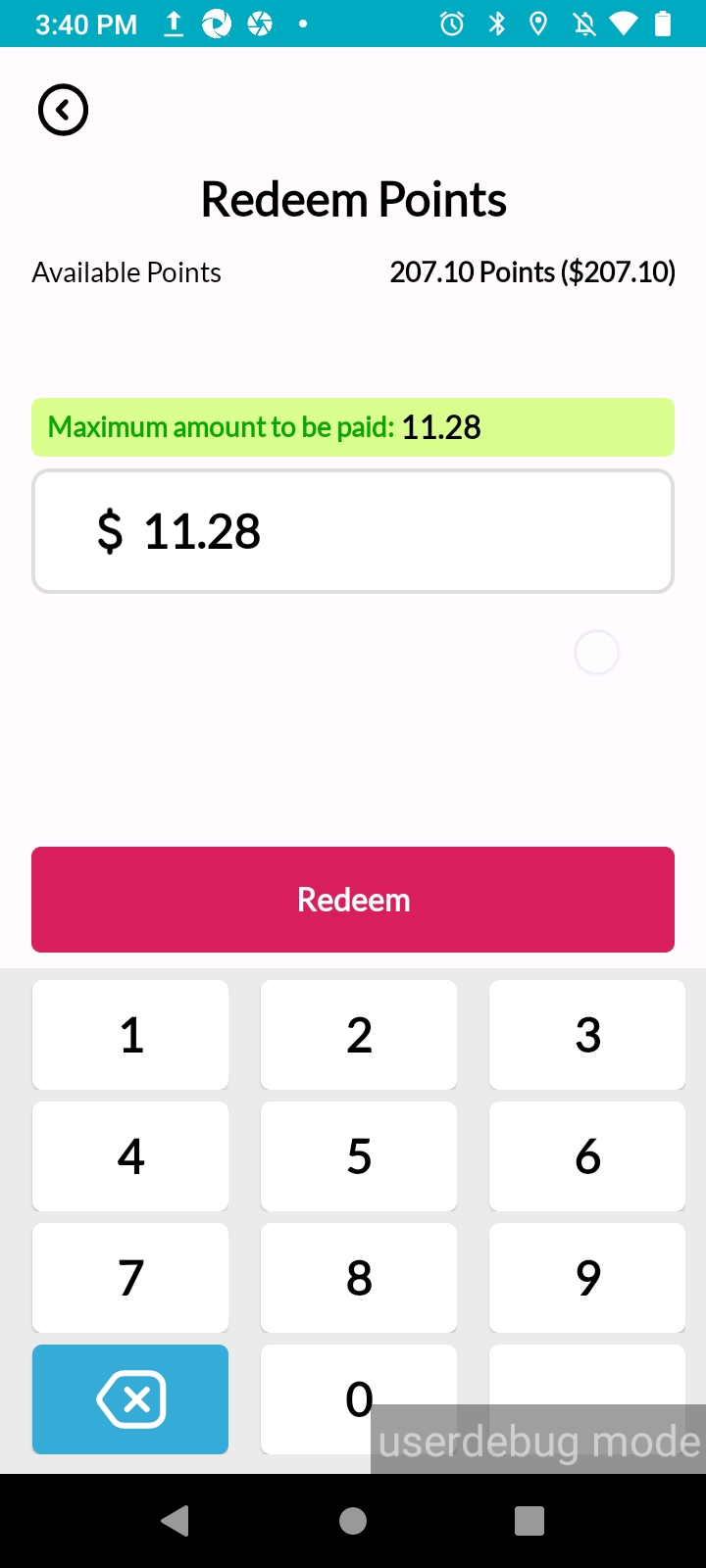
In this example, let’s accept the payment with the Member’s Available Points.
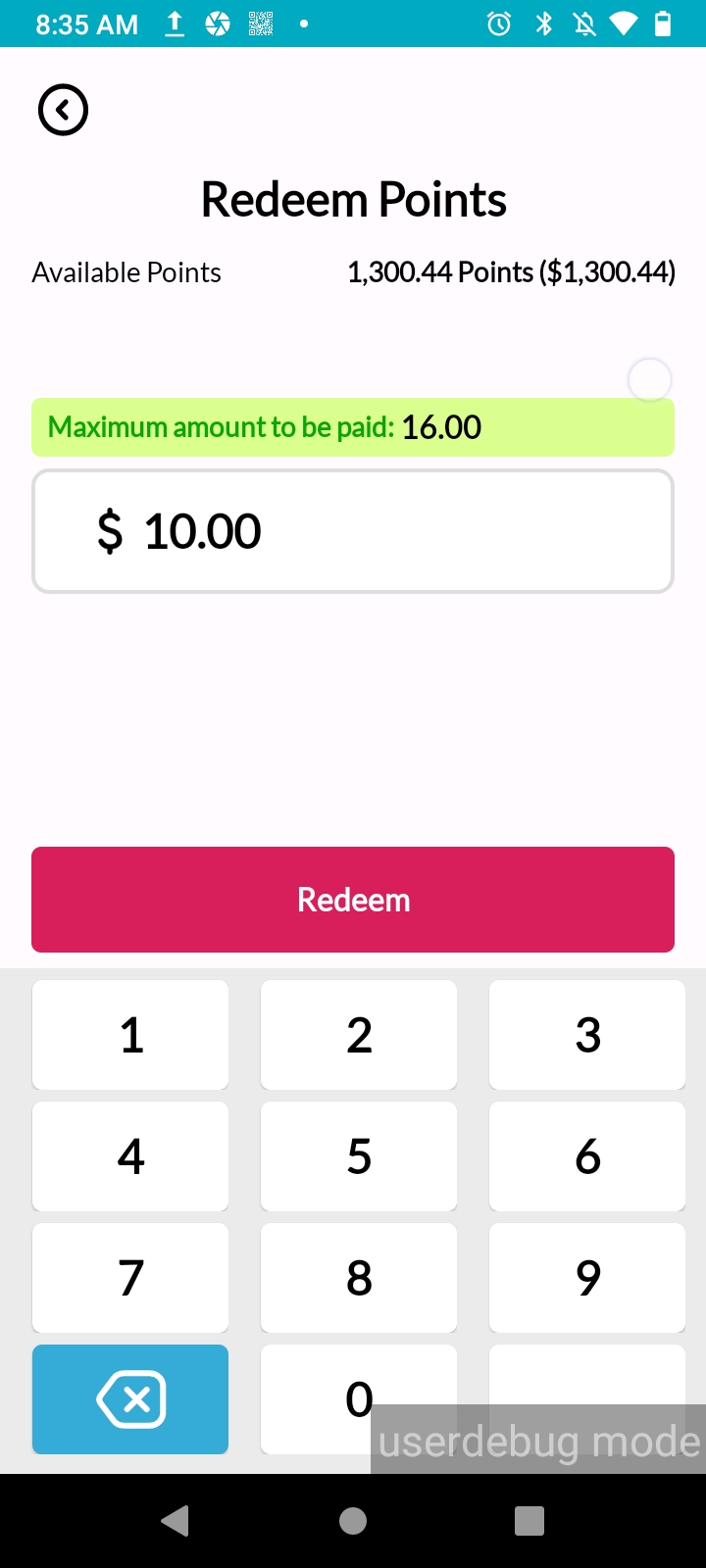
For the $20 purchase, select the “Redeem Points” option from the payment methods. Enter the point amount into the code entry field and click the “Redeem” button. If total amount due is higher than the total available points, the remaining amount should be paid with other payment methods.
Note!
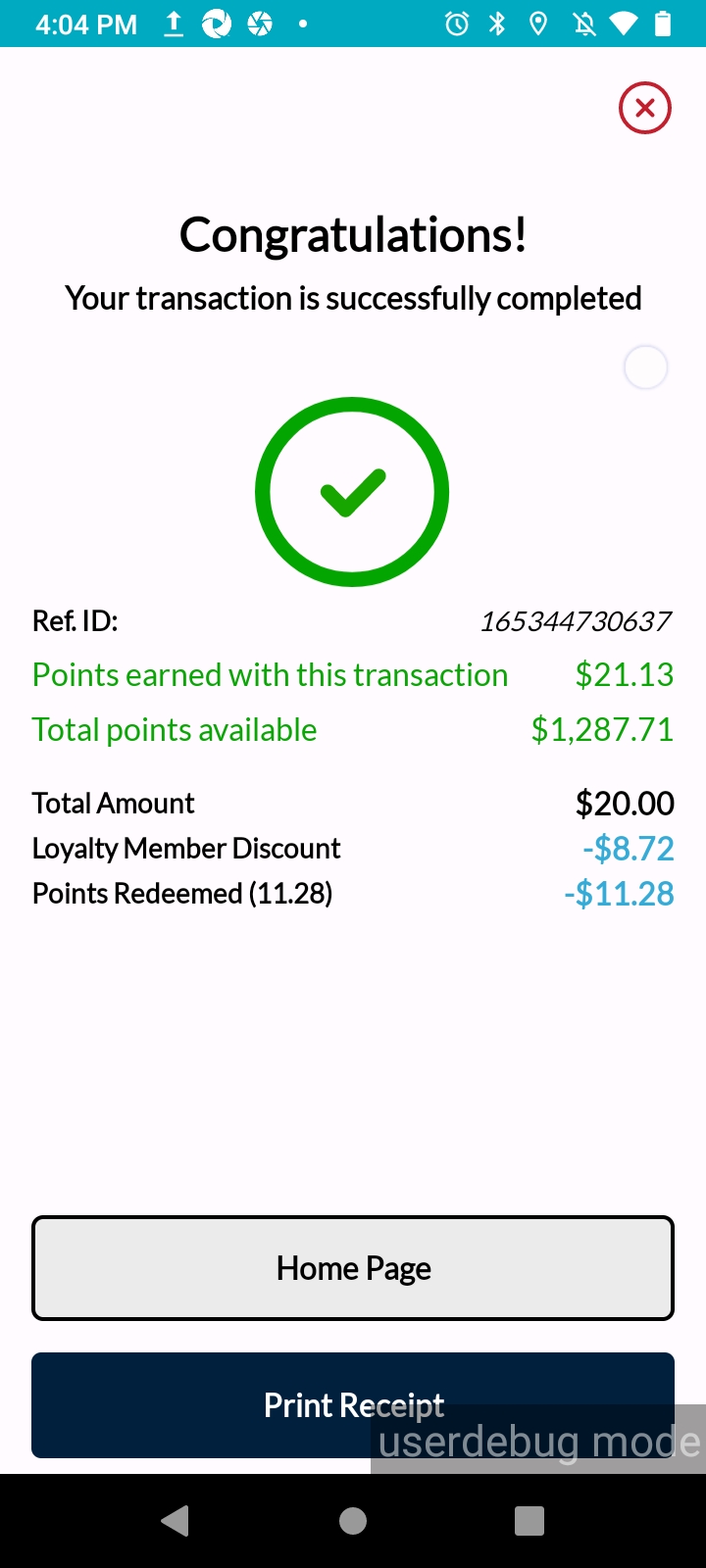
Members cannot earn points on the amount they paid with their points and/or coupons. You can always observe the points earned on the final payment completion screen next to the: ‘Points earned with this transaction’ line.
Payment with Bank Card (Prepaid/Debit or Credit Card)
You can always accept Bank Card payments as usual, and depending on your active campaigns, your members earn loyalty points when they pay with their Bank Card.
In this example, let’s accept the payment with the Member’s Bank Card.
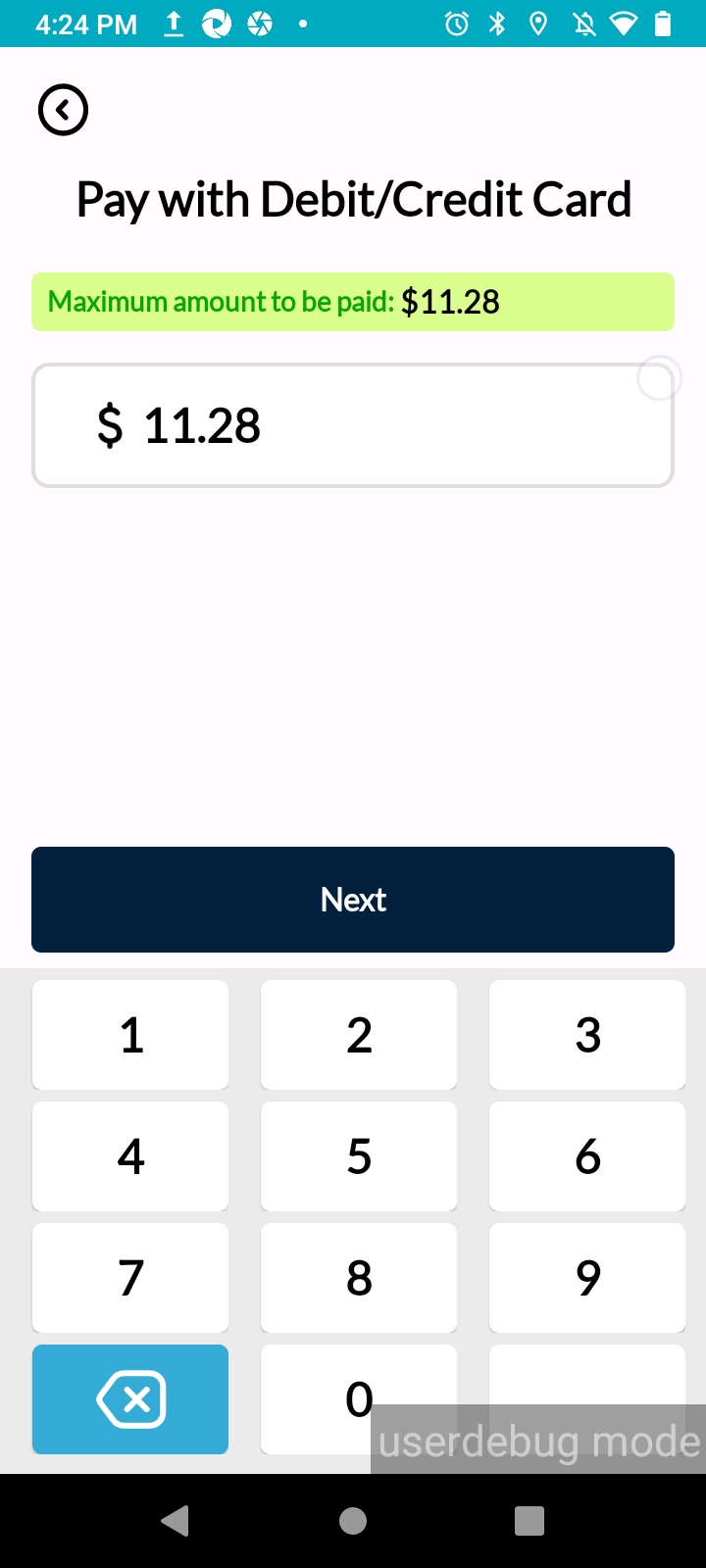
For the $20 purchase, select the “Debit/Credit Card” option from the payment methods. Enter the amount into the amount entry field, click the “Next” button. Click the “Pay” button and tap, swipe or insert the card on the opening screen to complete the payment.
Note!
Good news. Unlike your regular POS Terminal functions, if the Members Bank Card balance is insufficient, they can always pay with alternative methods like coupon, points and cash.
Payment with Cash
You can always accept Cash payments as usual, and depending on your active campaigns, your members earn loyalty points when they pay with Cash!
In this example, let’s accept the payment with Cash.
For the $20 purchase, select the “Cash” option from the payment methods.
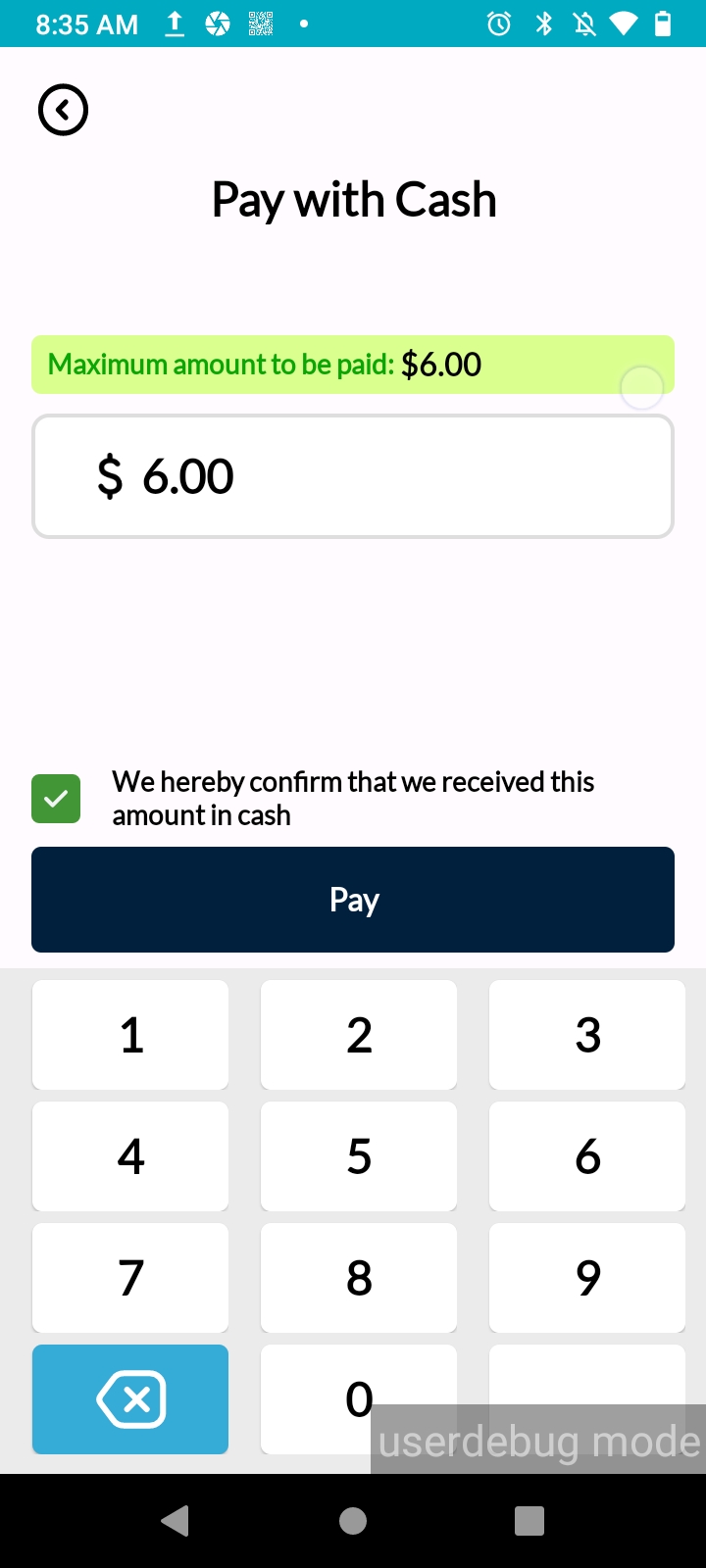
Let’s pay $20 by using cash payment for a $20 purchase, select the “Cash” option from the payment methods. Enter the amount into the amount entry field, check the cash payment confirmation box, click the “Pay” button.
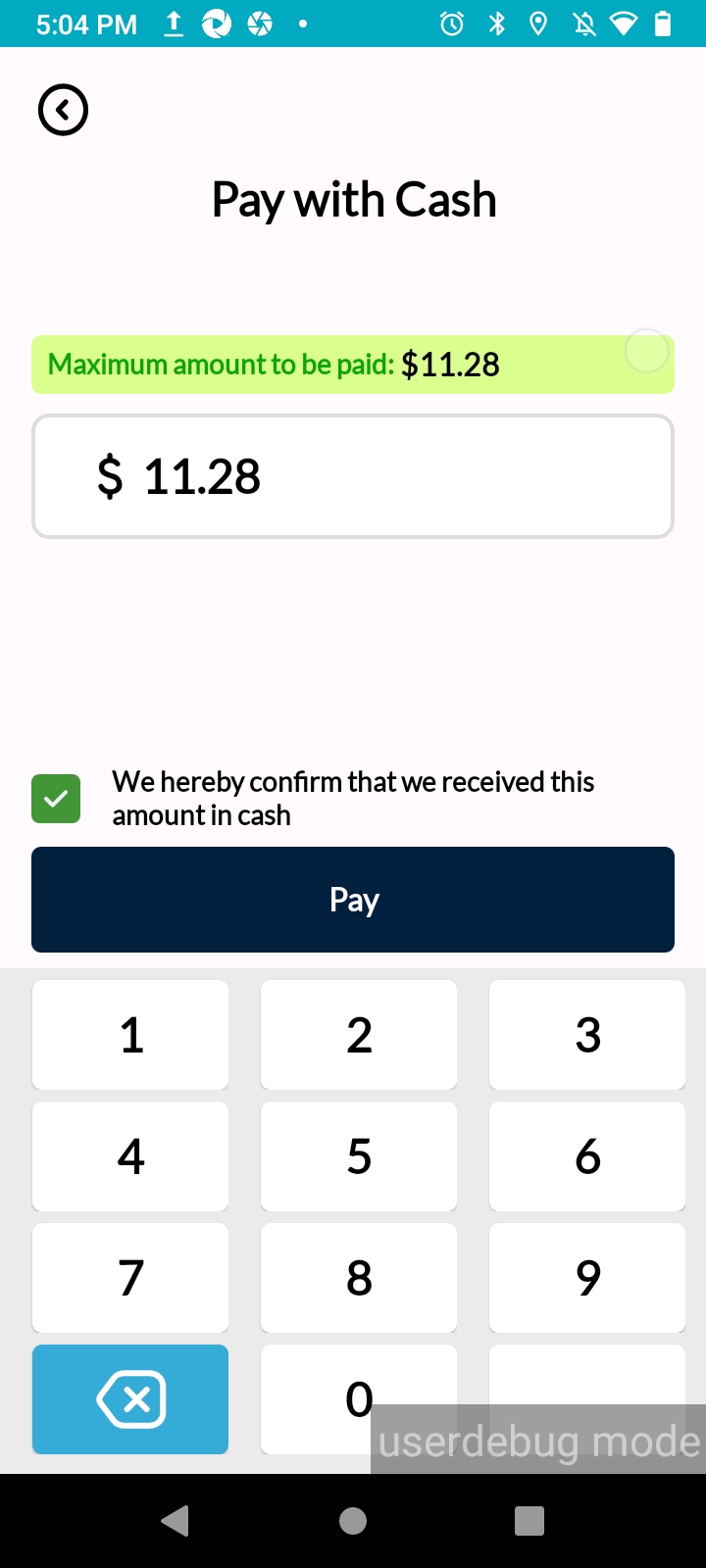
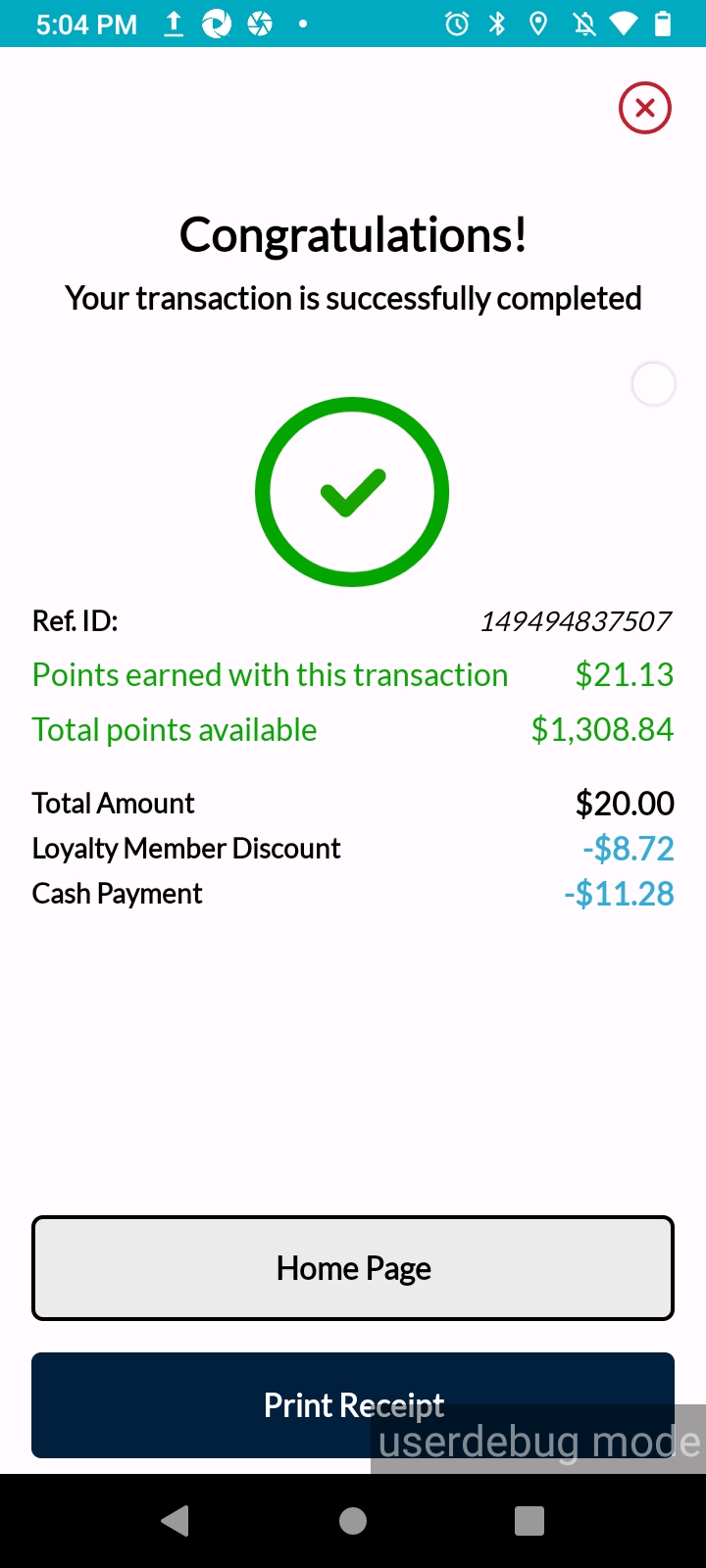
After payment is successfully completed, a transaction completion message will be displayed on the screen with the payment details.
Payment with multiple payment methods
You can use multiple payment methods in a single sale transaction. This option gives your Members the benefit of managing their rewards and budget and increase their loyalty with you.
In this example, Let’s accept the payment with a $20 coupon, $10 points and the remaining $6 with cash for a total of $36 purchase in one transaction.
Select the “Gift Coupon” option from the payment methods. Enter the coupon code into the code entry field and click the “Submit” button. Display the $16 total amount due on the payment screen.
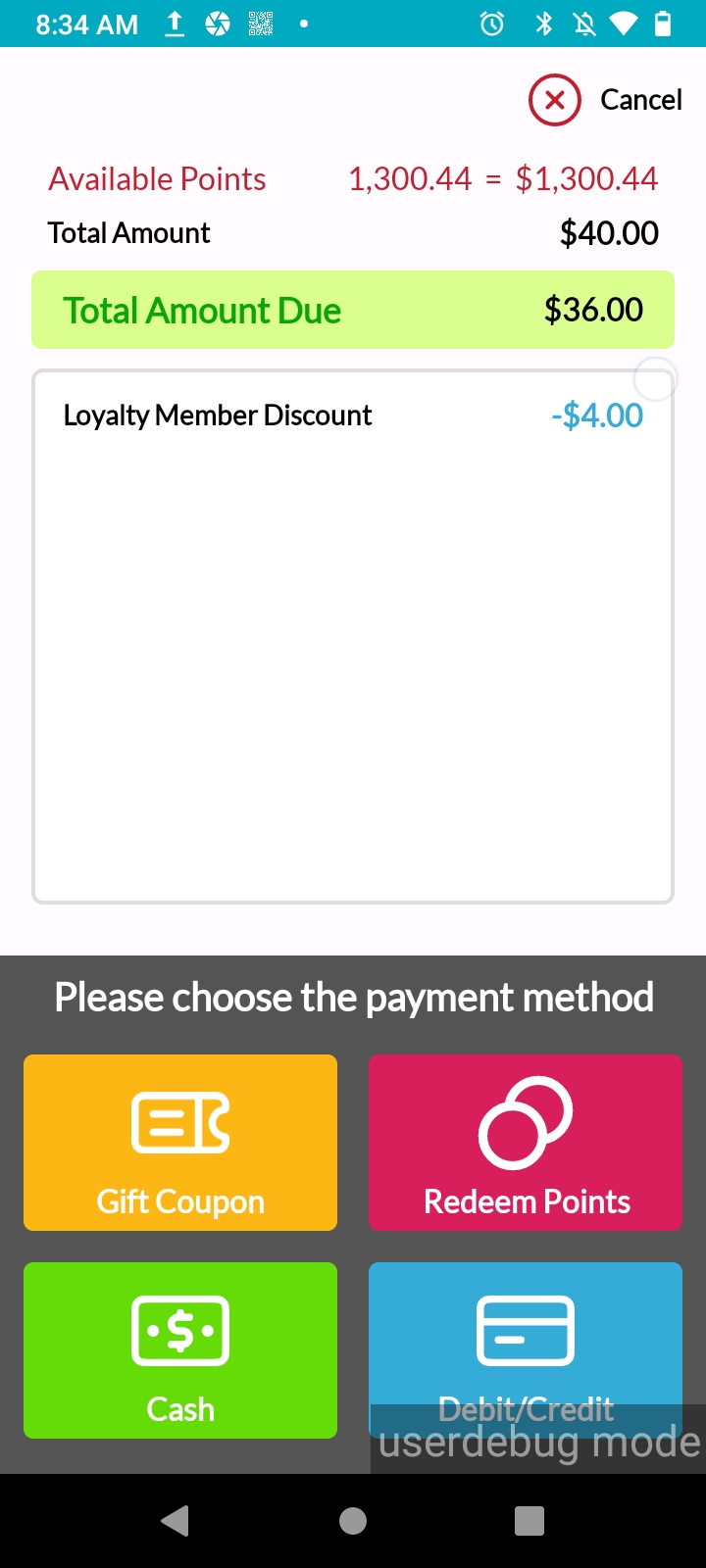
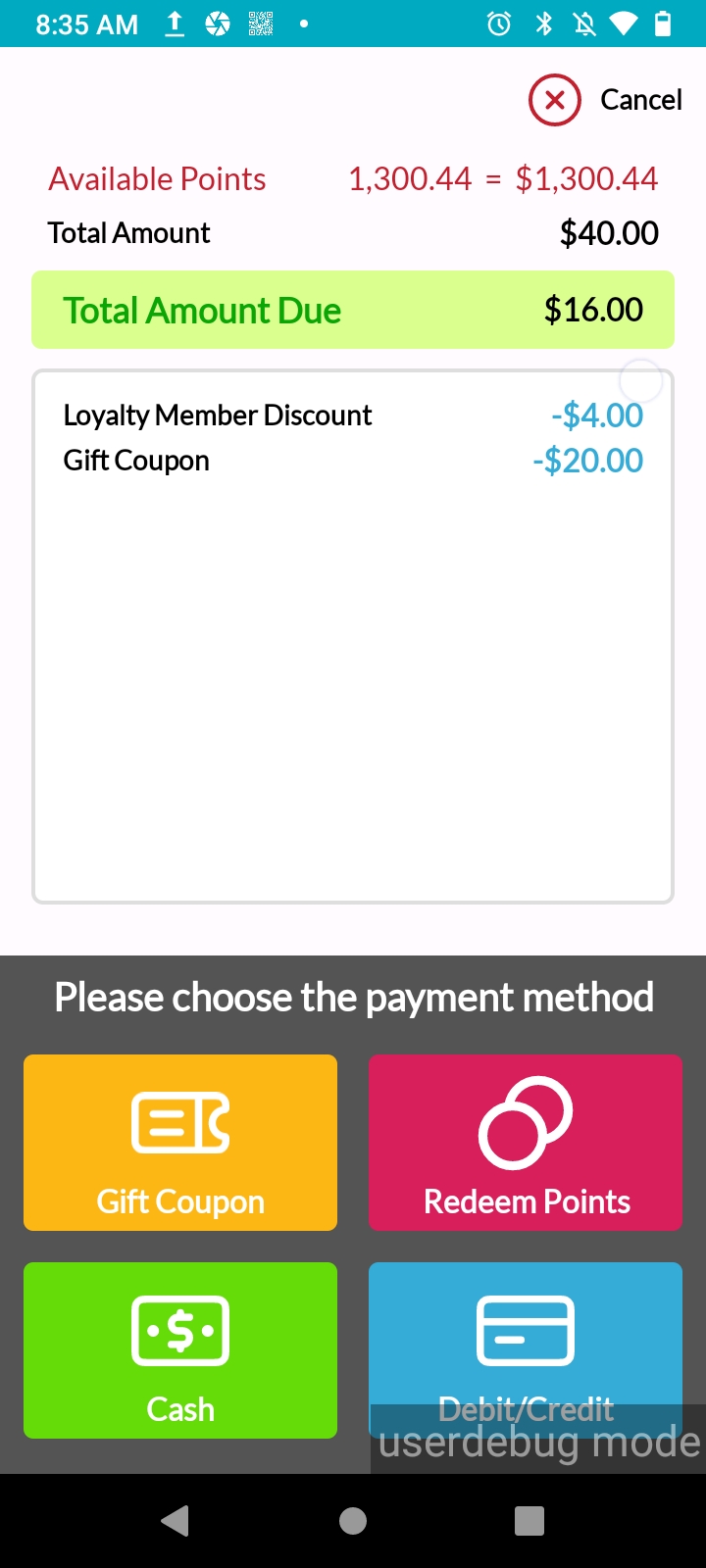
Then, select the “Point Redemption” option, enter the $10 point amount into the point entry field, click the “Redeem” button. Display the $6 total amount due on the payment screen.
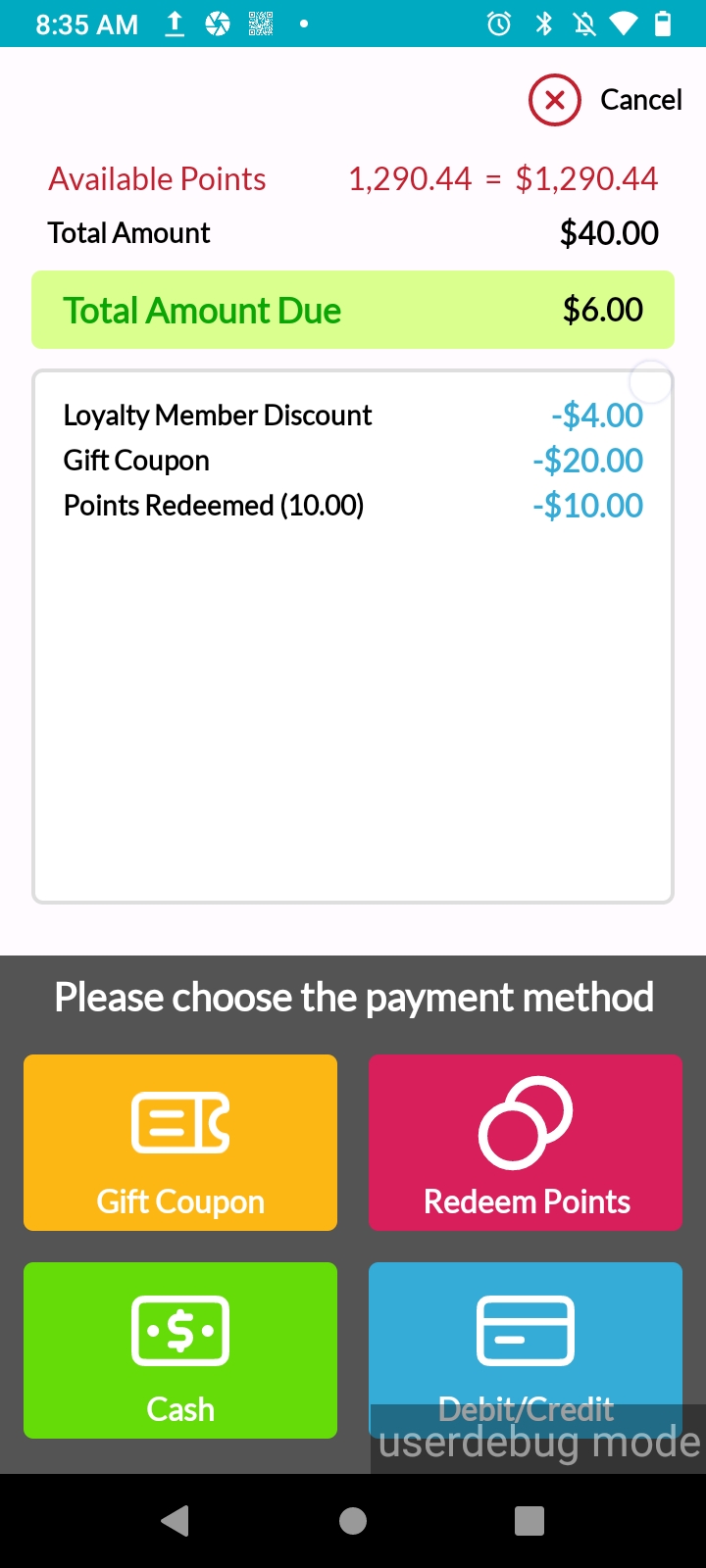
Select the “Pay With Cash” option, enter $6 to the amount entry field, select the “We hereby confirm that we receive this amount in cash” check box and click “Pay” button.
When the payment is completed, the breakdown of payments made with all payment types is shown on the next screen.
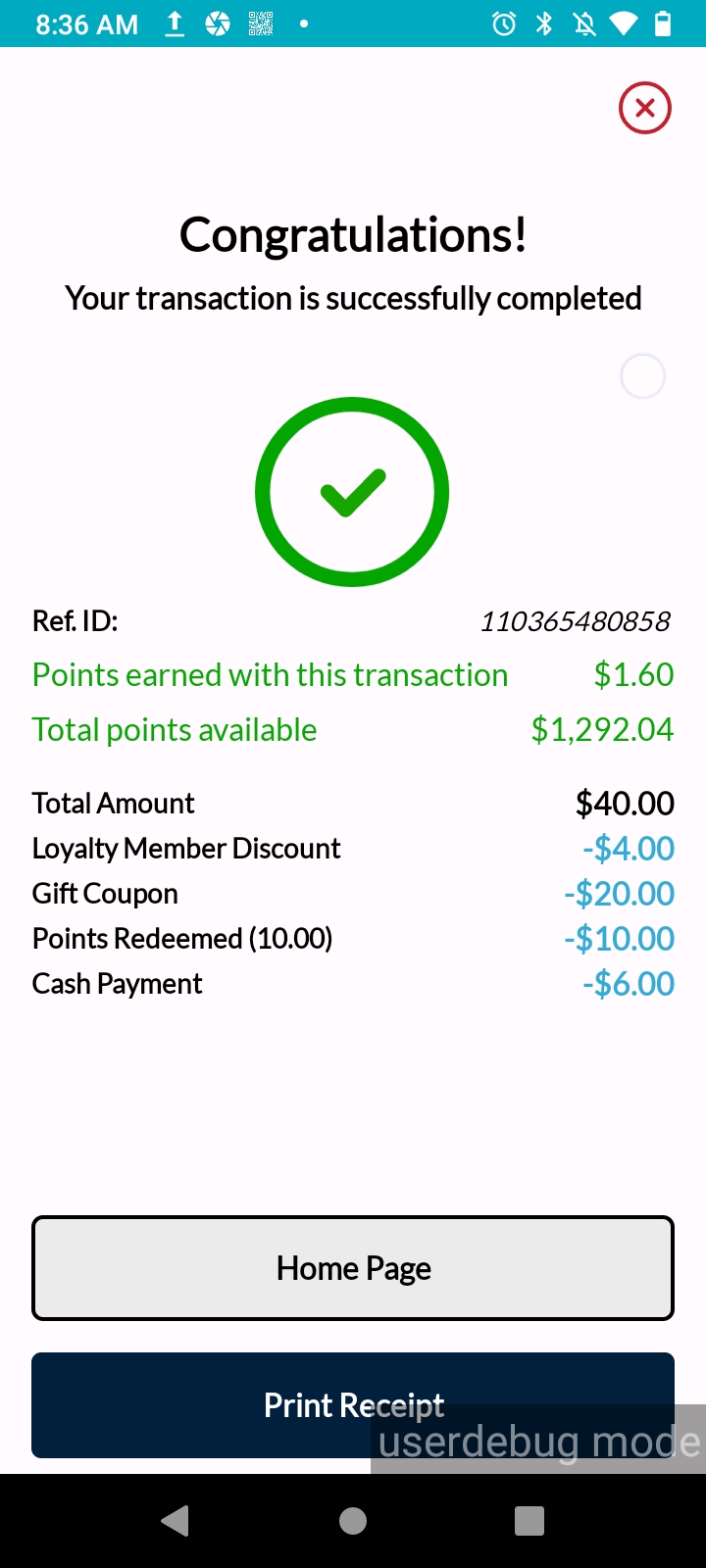
The receipt of the transaction can be printed according to the loyalty member’s preference.